
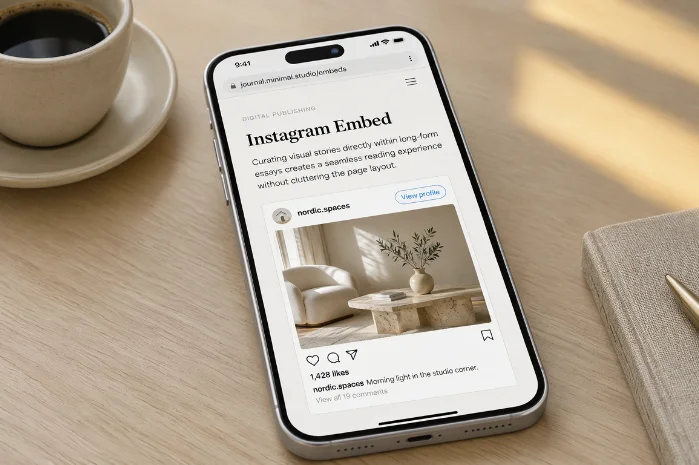
An Instagram embed lets you display a public post or Reel directly inside a webpage. The original content stays on the social platform instead of becoming a separate upload. Visitors can view the media without leaving your page immediately.
The setup is simple, but several details can cause problems. Private accounts, disabled embeds, blocked scripts, and poor mobile sizing are common trouble spots. This guide explains the fastest methods and shows how to fix those issues.
Quick answer: Open a public post or Reel in a web browser, choose the three-dot menu, select Embed, and copy the generated code. Paste that code into your website’s HTML or custom-code block. Publish the page and test it on desktop and mobile before considering the job finished.
| What you need to know | Quick answer |
|---|---|
| Best for | Showing a specific public post or Reel |
| Cost | Free with the platform’s native code |
| Coding required | Usually no |
| Works with private accounts | No |
| Stories supported | No through standard oEmbed |
| Good for multiple posts | A feed tool may be easier |
| Mobile testing needed | Yes |
| Main failure causes | Privacy settings, scripts, deleted content, or CMS restrictions |
How an Instagram Embed Works
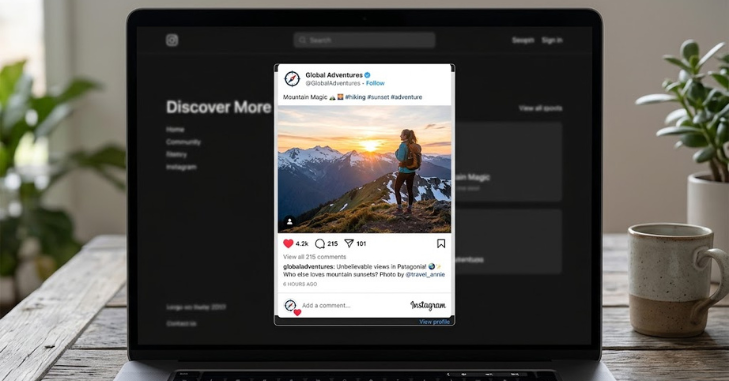
An Instagram embed displays externally hosted social content inside your page. The website loads supplied markup and a supporting script when a visitor opens the page. That script then renders the original media with its attribution.
This approach differs from downloading a photo and uploading it yourself. The original publisher remains visible, and the content continues to come from its source. If the source disappears, the embedded version can stop displaying too.
Native embedding works best when you need one or several selected posts. A full social feed has different requirements because it must retrieve changing content. For that use case, a feed widget or supported API setup can make more sense.
Native Embed, Feed Widget, or Screenshot?
Choosing the right method depends on what you want visitors to see. A single featured post does not need the same setup as an automatically changing gallery. The table below shows the practical differences.
| Method | Updates automatically | Setup effort | Design control | Best use |
|---|---|---|---|---|
| Native embed code | No | Low | Limited | One featured post or Reel |
| Feed widget | Usually | Medium | Medium to high | Multiple recent posts |
| API integration | Yes | High | High | Custom applications or large sites |
| Screenshot or image | No | Low | High | Static visual reference |
Native code is usually the easiest choice for a blog article. It preserves attribution and requires little technical work. It also avoids adding another widget provider to your site.
A feed widget becomes useful when fresh social content matters. It can display several recent items in a grid or slider. Check its permissions, performance impact, and pricing before connecting an account.
How to Add an Instagram Embed in 5 Steps
The native method works across many website builders that accept custom HTML. Menu names may differ between platforms, but the basic process stays similar. Complete these steps in order.
1. Open the public content in a browser. Visit the post or Reel on Instagram.com rather than relying only on the mobile app. 2. Open the three-dot menu. Look for the menu attached to the selected post and choose the embedding option. 3. Copy the generated code. Decide whether you want the caption included when that choice appears. 4. Paste the code into your website. Use a Custom HTML, Embed, Code, or source block instead of a normal text block. 5. Publish and test the page. Check desktop and mobile layouts while signed out or using a private browser window.
Do not judge the result from the editor alone. Some builders do not run third-party scripts during editing for security reasons. The published page may therefore behave differently from its preview.
Testing in a private browser window is especially useful. It shows whether visitors without your logged-in session can see the content. It can also reveal privacy or visibility problems you missed.
Adding the Code to WordPress
WordPress users have several possible routes depending on their hosting setup. A Custom HTML block can accept native code on sites that allow the required script. WordPress.com also documents direct embedding for individual public posts.
Meta now maintains an official WordPress plugin for its social embeds. The plugin supports post, Reel, carousel, and profile URLs on compatible WordPress installations. It can reduce manual setup when your site handles these embeds frequently.
Before adding several media cards, think about page performance. Third-party content adds network requests and scripts to the page. A few carefully selected examples usually serve readers better than a long wall of embeds.
For more website-related advice, Tablogy’s guide to responsive web design explains why layouts should work across screen sizes. You can also browse the site’s Tech section for related web and technology topics.
Keep Embedded Posts Mobile-Friendly
Social media cards can take up considerable vertical space on a phone. Place them inside a container that can shrink with the screen width. Avoid fixed page layouts that force visitors to scroll sideways.
Test the page at several common viewport widths. Check whether surrounding text, menus, advertisements, or sidebars push the media outside its content column. The embedded card should remain readable without covering other elements.
Page placement also affects the reading experience. A heavy third-party element near the top can delay useful content. Consider putting supporting social proof after the reader receives the main answer.
That approach also fits broader mobile design principles. A responsive page should adapt its structure instead of simply shrinking desktop content. Tablogy’s responsive design article covers that principle in more detail.
Why Embeds Sometimes Stop Working
A broken Instagram embed does not always mean your website code is wrong. The original account may have become private, or the publisher may have disabled embedding. Deleted and restricted content can also disappear from external pages.
The supporting JavaScript is another common cause. Security tools, content blockers, consent systems, or a restrictive CMS can prevent the script from loading. In that case, visitors may see an empty area or a plain fallback link.
Dynamic websites can create another issue. Content inserted after initial page load may appear after the social script has already finished processing the page. Developers may need to process newly inserted media after it enters the document.
Before changing code, open the original post in a private browser window. Confirm that it remains public and accessible. Then test your page without aggressive browser extensions or content blockers.
Privacy and Performance Considerations for U.S. Websites
Embedded social media is third-party content. Loading it can cause a visitor’s browser to communicate with services outside your website. That makes privacy review an important part of implementation.
U.S. privacy requirements vary by state and by how a business handles personal information. Site owners should review their privacy notice and consent setup before adding extensive third-party tracking technology. A qualified privacy professional can advise on obligations for a specific business.
Performance matters too. Each external media card can add scripts, images, network requests, and rendering work. Limit embeds to content that genuinely improves the page rather than filling empty space.
For sites centered on digital communication, Tablogy’s article about creating a messaging application provides related context about social features and user experience. Its Digital Marketing section also offers broader marketing material.
When a Social Feed Is Better
Embedding individual posts works well when you want complete editorial control. You decide which item appears and where it sits on the page. Nothing changes unless the original publisher changes or removes that content.
A social feed is better when your goal is freshness. Restaurants, creators, ecommerce stores, events, and local businesses may want new posts to appear automatically. Manually replacing embedded code becomes inefficient in those situations.
Feed tools introduce their own tradeoffs. They may require account permissions, ongoing subscriptions, extra scripts, or external processing. Review those requirements before installing another service.
A custom API connection offers the greatest control for larger projects. It also needs more development and maintenance. Most blogs do not need that complexity for one or two featured posts.
Common Mistakes to Avoid
Small implementation mistakes can make an otherwise simple feature unreliable. Most problems are easier to prevent than diagnose after publication. Check these points before going live.
* Trying to display content from a private account. * Pasting HTML into a normal paragraph block. * Removing the required supporting script. * Using too many embeds on one page. * Forgetting to test the mobile layout. * Assuming a deleted post will remain visible. * Ignoring third-party privacy implications. * Using a full feed tool when one native post would work.
Treat an embedded post as part of the page rather than a decorative extra. It should answer a question, demonstrate something, provide evidence, or strengthen the surrounding discussion. Remove it when it adds little value.
Final Checklist Before Publishing
A reliable setup should work for visitors, not only inside your CMS. Check the live page on multiple screen sizes and use a private browser session. Confirm that the source remains public and that no page element overlaps the media.
Also decide whether native code is still the right solution. One featured item usually needs nothing more complicated. A frequently changing gallery may justify a feed tool or supported API integration.
Once those checks pass, publish the page and monitor it after future site changes. Theme updates, consent tools, security settings, and source visibility can affect third-party content. Periodic testing keeps the experience working as intended.
Frequently Asked Questions
Why is my Instagram embed not working?
The account may be private, inactive, restricted, or configured to prevent external embedding. The post itself may also have been removed. A blocked or missing embed script can create the same symptom.
Start by checking the original content in a private browser window. Then confirm that your website allows the supplied code and external script. Test without browser extensions if the problem continues.
Can I embed a Reel on my website?
Yes, public Reels can be displayed when embedding is permitted. The process is similar to embedding a regular post. Copy the supplied code and place it inside a supported HTML area.
The Reel remains hosted by its original platform. If its visibility changes later, your external page may lose the rendered media. Keep that dependency in mind for evergreen articles.
Can I embed content from a private account?
No, standard public embedding does not provide access to private posts. Making the code public would defeat the account’s privacy setting. Choose content from a public account instead.
Changing your own account to public may make eligible posts available for embedding. They generally need to remain publicly accessible for the external version to keep working. Always recheck the published page after changing account settings.
Can I embed Stories?
Standard oEmbed support does not include Stories. Use an eligible public post or Reel when you need persistent embedded content. A screenshot is another option when you have the necessary rights.
Stories are temporary by design, which also makes them a poor fit for permanent website content. Evergreen pages benefit from media that remains available. Choose the format with long-term availability in mind.
Does embedding a post slow down a website?
It can add some loading work because third-party scripts and media must be requested. The effect depends on the number of embeds and your overall page design. Several social cards usually cost more than one selected example.
Keep the number of embeds reasonable and test real page performance. Place nonessential social media farther down the page when appropriate. That keeps the primary information available sooner.